
Record meetings
Combines your microphone and the meeting app's audio into one recording, and reduces speaker echo and background noise.
100% free
Fully on-device
Works offline
Nothing goes to the cloud. Peace of mind for the meetings that matter.
Kea Voice is a free AI transcription app that does everything, from recording to Japanese transcription and meeting minutes, entirely on your PC.
Your meeting audio and transcripts never need to be sent to an outside server, and it works without an internet connection.
Mac: macOS 14 Sonoma or later, Apple silicon (M1 or later) only Windows: Windows 10 / 11 (64-bit, x64) Always the latest version
On both Mac and Windows, a warning appears the first time and has to be allowed once. Mac steps · Windows steps
Security
Customer data. HR matters. Unannounced business plans.
Business meetings are full of information that must not leave the company.
Kea Voice processes everything on-device, so your meeting data is never handed to the cloud.
Audio, transcripts and minutes: all of it stays on your PC.
Meeting data is never sent to an outside server.
Recording, transcription, speaker identification and meeting minutes: every AI step runs on your PC.
There is no need to upload audio or transcripts to the cloud.
Transcribe without an internet connection.
Once the AI models are downloaded during the first setup, recording, transcription and meeting minutes all work offline.
Internet access is limited to things like downloading AI models and checking for app updates.
Start right away, without giving any personal details.
No email address, no account to create.
Nothing collects or sends your meeting content or usage data.
Widely used open models, running on your PC.
Uses open AI models such as OpenAI's Whisper and Alibaba's Qwen.
They are downloaded from public repositories on Hugging Face and GitHub, then run on your PC.
Your audio never has to be sent to an outside AI service to be transcribed.
Verification that detects tampering.
App updates are checked against a digital signature before they are installed.
The programs and libraries the app runs are checked against fixed hash values, so tampering or unexpected changes are detected.
Store it, back it up, delete it: your call.
Recordings and transcripts are saved as ordinary files on your PC.
Change where they are saved, back them up or delete them as you like. No dependence on a cloud service: your data stays yours.
Nothing handed to the cloud.
That is how Kea Voice is designed for security.
From confidential internal meetings to important client discussions,
use AI transcription without sending meeting data to an outside server.
Combines your microphone and the meeting app's audio into one recording, and reduces speaker echo and background noise.
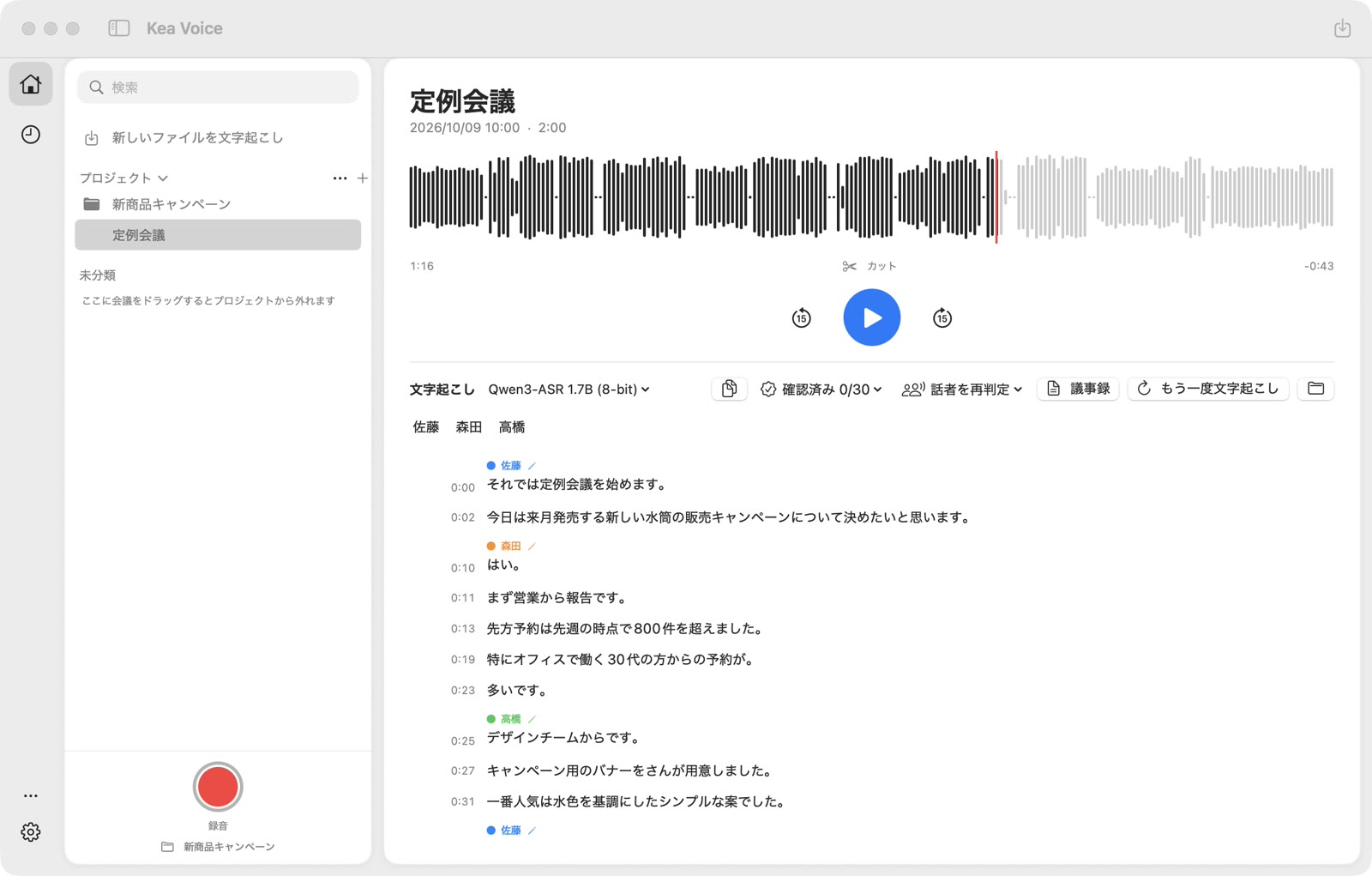
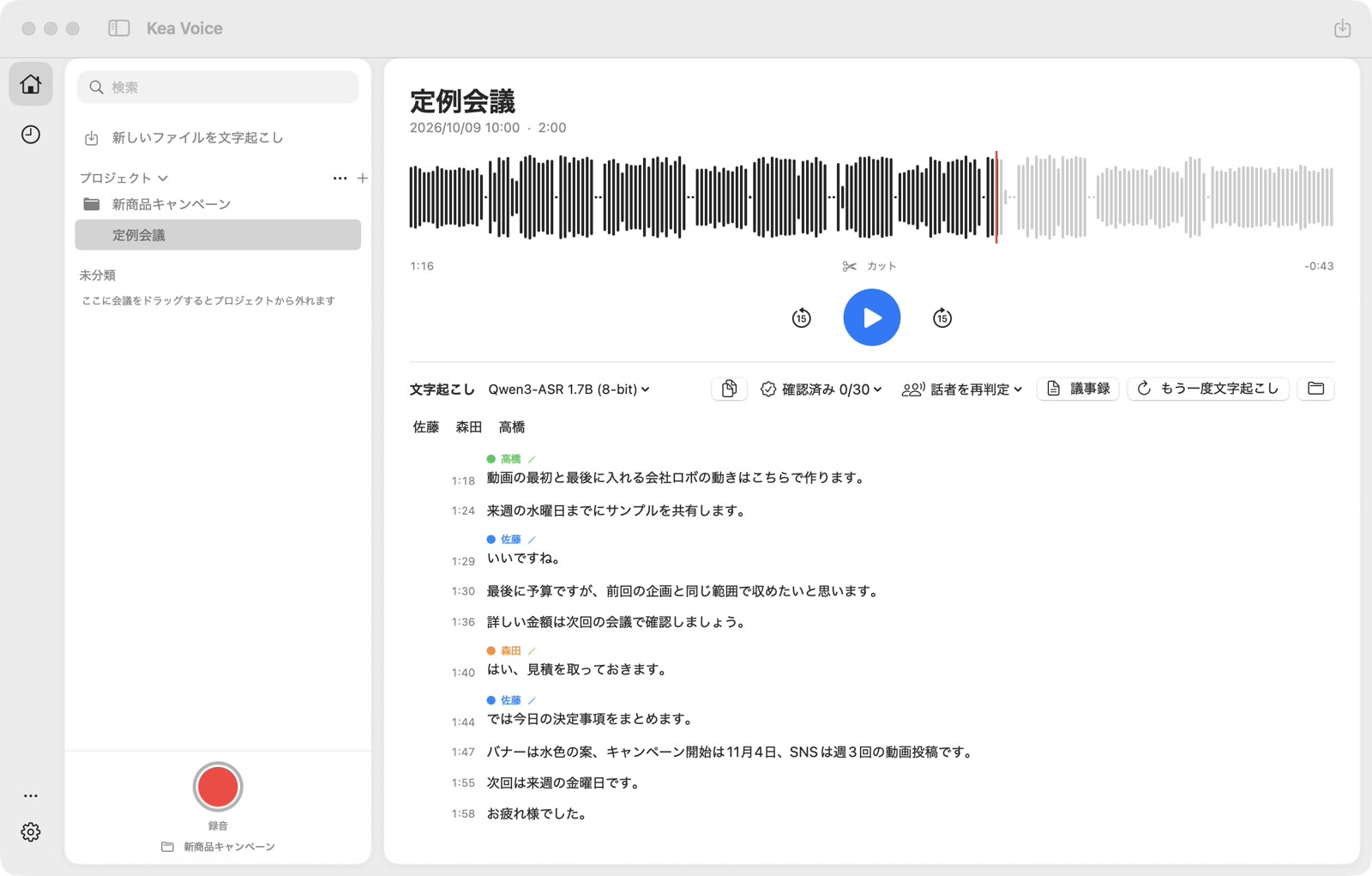
When the recording ends, it is transcribed with each speaker's lines separated. English and Vietnamese work too. You can also drag your own audio and video files into the window to transcribe them.
Correct each sentence and replay the audio of any part instantly. Export the result as text (.txt) or subtitles (.srt).
Import audio from voice recorders and smartphones, or recordings of online meetings, and transcribe them. Drag and drop them onto the window, or choose them from “Transcribe a new file”. You can pick several files at once. Imported files never leave your PC.
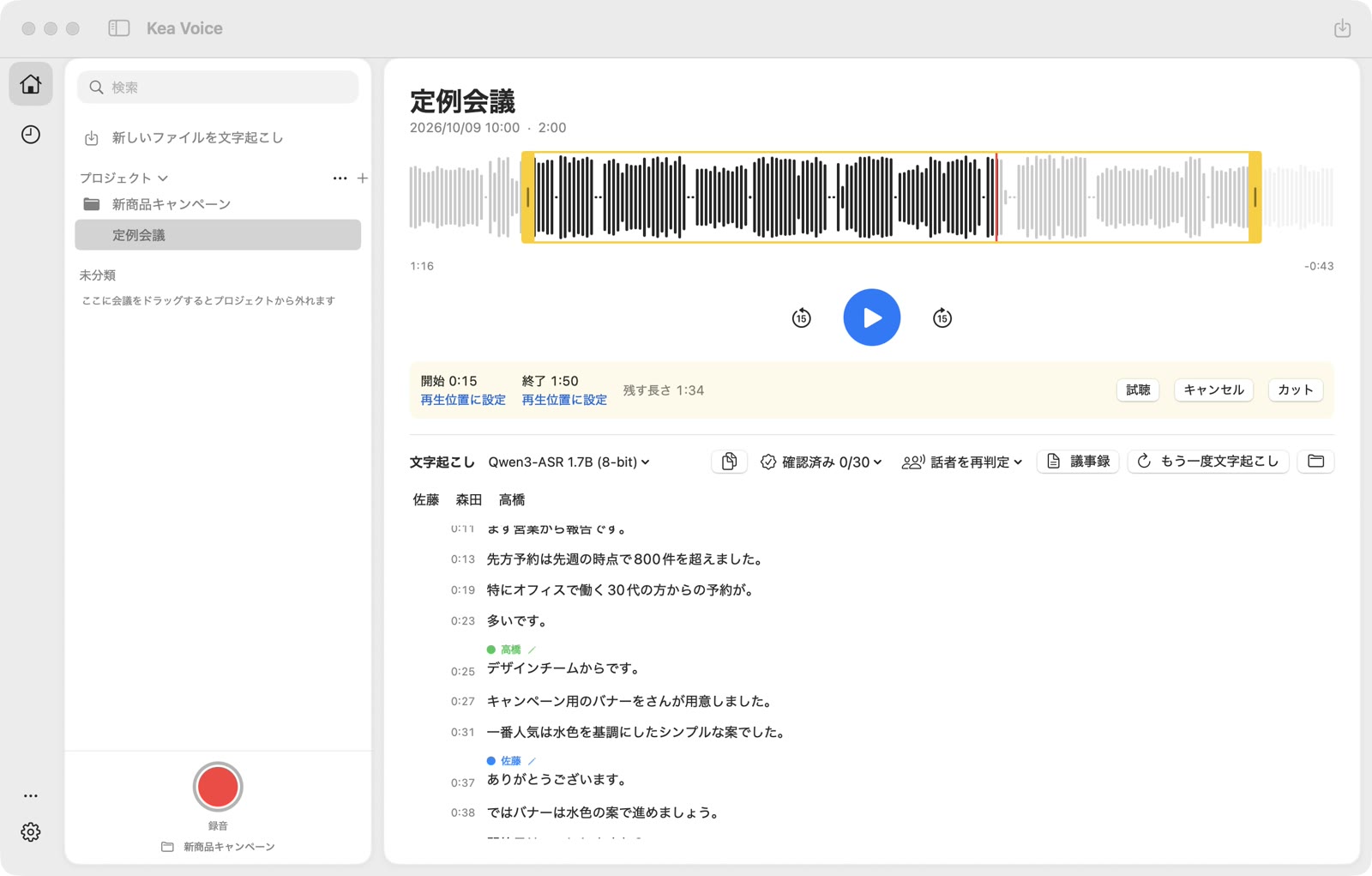
Where speech is heard but little text came out, it flags the spot and suggests a sentence. You decide whether to add it; the app never writes anything in on its own.
Save meetings into projects (folders) and pin the ones you use most. Search covers the contents of transcripts too.
Record your microphone and the meeting app's audio together.
When the recording ends, it is transcribed (Japanese, English or Vietnamese).
Make corrections and save as a text or subtitle file.
Already have a recording? Skip step 1 and just drag the file onto the window to transcribe it.
The Mac version is not yet notarized by Apple, so the first time you open it you need to allow it in macOS Privacy & Security. You only have to do this once.
Open “KeaVoice.dmg” and drag “Kea Voice” into the Applications folder.
When you open Kea Voice, macOS says “Kea Voice” Not Opened. Click “Done” to close the message (do not click “Move to Trash”).
Open Apple menu → System Settings → Privacy & Security and scroll down. Next to “Kea Voice” was blocked to protect your Mac, click “Open Anyway” and enter your Mac password.
Open Kea Voice again and click “Open Anyway” when asked. From then on it opens normally.
For Windows, see Installing on Windows.
The Windows version is not yet code-signed, so your browser and Microsoft Defender SmartScreen show a warning when you download and install it. This only means the publisher cannot be verified. Follow these steps to allow it once.
If your browser says the file isn't commonly downloaded: in Edge click “…” → “Keep” → “Show more” → “Keep anyway”; in Chrome click “Keep”.
Double-click “KeaVoice-Setup.exe”. “Windows protected your PC” appears.
Click “More info” to see the app name and publisher (Unknown publisher), and a “Run anyway” button.
Click “Run anyway” to install. After that it opens normally, and updates happen inside the app.
We plan to get the app code-signed; after that this warning will no longer appear.
Kea Voice is designed to process and store meeting audio, transcripts and minutes on your PC, without sending them to outside servers.
Internet access is used for things like downloading AI models and checking for app updates.
Transcription works in Japanese, English and Vietnamese. The app itself is currently in Japanese and Vietnamese, and meeting minutes are written in Japanese.
Yes. Once the required AI models are downloaded, recording, transcription and meeting minutes all work offline.
It uses widely used open AI models such as OpenAI's Whisper and Alibaba's Qwen.
The models are downloaded from Hugging Face and GitHub and run on your PC. Your meeting audio never has to be sent to an outside AI service.
Yes. Kea Voice processes meetings locally without sending data to outside servers, and is designed with confidential meetings in mind.
Please also check your organization's information security policy before use.
Yes. Kea Voice is completely free. No account or login is needed.
The first setup downloads the runtime and the transcription model (about 3–5 GB depending on the model). After that, the internet is only used to check for updates and to download another model if you choose one. Recording and transcription do not use the network.
In the folder inside your Documents folder. You can change the location in Settings.
Yes. Rather than connecting to each meeting app, it records the audio your PC plays. On Mac it needs the “Screen & System Audio Recording” permission the first time; on Windows it records the default playback device.
Yes. It supports MP3, M4A, WAV, AAC, FLAC, OGG and AIFF audio and MP4 and MOV video. Drag and drop them onto the window, or choose them from “Transcribe a new file”. You can import several files at once. Files are processed on your PC and never sent outside.
No. Transcription runs after the recording ends.
The first time only, go to System Settings → Privacy & Security and click “Open Anyway”. For details, see Installing on Mac.
The Windows version is not code-signed yet, so Microsoft Defender SmartScreen shows a warning. Click “More info”, then “Run anyway” to install. For details, see Installing on Windows.
Fully on-device AI transcription that never goes to the cloud.
Get Kea Voice free today.
100% free | Works offline | No sign-up
Mac: macOS 14 Sonoma or later, Apple silicon (M1 or later) only Windows: Windows 10 / 11 (64-bit, x64) Always the latest version